Getting started
Open the Simple Gastos chat on WhatsApp and type hi
. If your country doesn't speak Spanish, it first asks which language you'd like.
Your 7-day free trial starts with your first message. No card needed.
Type help
anytime to see the menu with every option.
Recording expenses
There are four ways, all in the same chat:
Photo of the receipt or ticket. Make sure it's complete and well lit.
PDF of the invoice you got by email: forward it to the chat.
Screenshot of a transfer or a card payment.
Text, however you like. The bot reads the amount, date and merchant, and picks the category.
| Type | What happens |
|---|---|
| lunch 12.50 | Today's lunch, in Restaurants. |
| taxi 8 from downtown to the airport | Also keeps the origin and destination. |
| coffee 3.50 yesterday | Dated yesterday. |
| I spent twenty dollars at the pharmacy yesterday | Works even with the amount in words. |
| 10 euros for coffee | Records it in euros, even if your currency is different. |
If you send the same receipt twice, it tells you and asks whether to record it anyway.
Fixing and deleting
Under each recorded expense you get three buttons: Change category, Fix amount and Undo.
You can also type it:
| Type | What happens |
|---|---|
| it was 3.50 | Fixes the amount of the last expense. |
| category Pets | Changes the last expense's category (and creates it if needed). |
| undo | Deletes the last expense. |
| delete yesterday's taxi | Finds that expense, shows it to you and deletes it if you confirm. |
When you correct a category, the bot remembers it for your next purchase at that same store.
Categories
You start with twelve categories, like Groceries, Restaurants, Transport, Home and Health. You can create your own, rename them or remove them.
| Type | What happens |
|---|---|
| categories | Shows your categories and how many expenses each has. |
| new category Pets | Creates the category. |
| rename category Clothing to Apparel | Renames it. |
| delete category Pets | Removes it; its expenses move to Other. |
Reports
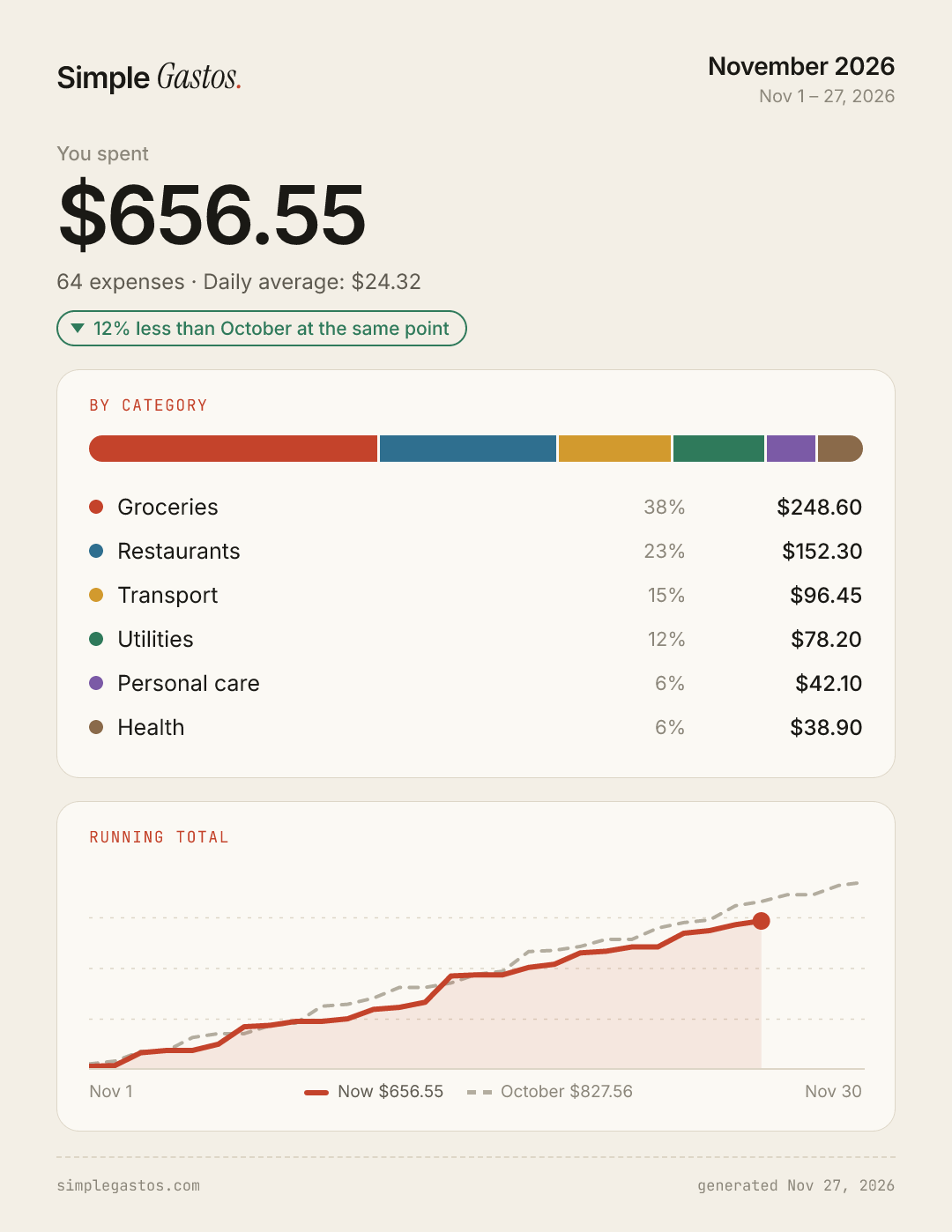
Type report
and you get the month's image right away: how much you spent, by category, and the month's curve against the previous one. Below it, the Other reports button.
Other periods: last month, last 30 days, last 12 months, this year and last year. You can also ask for them in words.
| Type | What happens |
|---|---|
| report | This month and the menu with the others. |
| how much did I spend last month | Last month's report. |
| report last 12 months | Month by month, the last year. |
Prefer dark reports? Type settings and choose Report theme.
Repeat purchases
Shows what you buy often, how often you buy it and what it costs you per month, based on your last year. For example: Eggs · every 7 days · $1.00 each time · $4.35 a month.
Something shows up once you've recorded it at least twice. Things you stopped buying a while ago don't count.
| Type | What happens |
|---|---|
| repeat purchases | Or pick it in Other reports. |
| how often do I buy eggs? | It understands that too. |
Budget
The first time, the bot suggests a budget from your average over the last months (up to 3), split by category. Accept it with Use this or set another amount.
It warns you at 80% and when you go over, per category and in total. And budget
shows how much you've spent, what's left and where you'd end the month at this pace.
| Type | What happens |
|---|---|
| budget | Suggests one or shows how you're doing. |
| budget 400 | Your total monthly budget is $400. |
| budget groceries 150 | Changes one category's budget. |
| remove budget | Deletes it. |
Export to Excel and PDF
Type export
and pick the period: this month, last month, this year or everything. You get an Excel file with one row per expense: date, description, merchant, category and amount.
On Premium you also get a single PDF with all your original receipts, unmodified, with an index at the start and bookmarks to jump to each one. Each receipt's No. is the same in the Excel and the PDF.
If you save your email, it also arrives by email with two buttons: Download Excel and View receipts. Links last 7 days.
| Type | What happens |
|---|---|
| export | Excel (and the receipts PDF on Premium). |
| email accountant@example.com | Saves the email they're sent to. |
| delete email | Stops sending by email. |
| send me the TecnoCentro receipt | Finds that receipt and sends you the original file. |
You can export even if your plan has expired: your data is yours.
Settings
Type settings
to change the language, the currency, the report theme (light or dark) or your email, and to delete your data.
The currency is set from your country when you start. If you change it, earlier expenses keep their original currency.
| Type | What happens |
|---|---|
| settings | The settings menu. |
| language | English, Spanish or Portuguese. |
| currency EUR | From now on it records in euros (any code works, like GBP or CAD). |
Plan and payments
There are two plans. Basic: records, sorts, reports, budget and Excel; it reads your receipts but doesn't keep them. Premium: all of that, plus it keeps every photo and PDF, the receipts PDF and asking for any receipt in the chat.
You pay once for 1 month, 3 months or 1 year, by card or PayPal. Nothing renews on its own: we remind you 5 days and 1 day before it expires.
| Type | What happens |
|---|---|
| plan | Your plan, when it ends and the link to renew or switch. |
Privacy
Simple Gastos never asks for bank passwords and never moves your money: it only sees what you send it. We don't sell your data.
You can delete everything anytime. Read the privacy policy.
| Type | What happens |
|---|---|
| delete my data | Permanently deletes your expenses, receipts and account (asks you to confirm). |
Quick reference
Something not working the way you expected? Tell the bot in your own words.